
Nothing’s more maddening than a sluggish computer, right? We’ve all been there. You press a key, wait, and nothing happens.
Or worse, you get the spinning wheel of doom, and your patience (and coffee) runs thin. This isn’t just another generic guide. I’ve spent years diving into real-world PC issues, so you don’t have to waste time or money.
Here, you’ll get a straightforward roadmap with practical PC optimization techniques. No more guessing games. From free tweaks to smart hardware upgrades, I’m sharing what actually works.
Forget jargon, we’re cutting straight to the chase. You want speed? You’ll get it.
You want efficiency? That’s here too.
Trust me, this guide will transform your computer experience. By the end, your machine won’t just be faster; it’ll be as if it finally listened to your cries for help.
The 10-Minute Tune-Up: Easy Software Fixes for Quick Wins
I get it. You’re busy, and your computer’s sluggish. Who has time for complex solutions?
You want immediate results (don’t we all?). to some PC optimization techniques that are quick and effective.
First off, power options. If you’re on Windows, set it to “High Performance.” On a Mac, the equivalent is a bit buried but worth finding. Doing this unlocks your CPU’s full potential.
Why let it loaf around on “Balanced” when you’re trying to hustle?
Next, tackle those pesky startup programs. Open Task Manager on Windows or System Settings on Mac. Scroll through the list.
Do you really need Spotify loading on boot? Probably not. By disabling non-important programs, you speed up your startup time without breaking a sweat.
Now, update your operating system and drivers. Especially the graphics ones. Updates patch performance bugs and improve efficiency.
It sounds tedious, but it’s a low-effort win. Seriously, no one wants their PC to crash during an important task.
Let’s not forget visual effects. Fancy animations and transparencies are pretty. But do you want pretty or fast?
Disable them for speedier navigation. It’s trading eye candy for actual productivity.
For more pro tips windows system optimization, check out some expert advice. It’s about making your machine work for you, not the other way around. Why wait when you can fix it in minutes?
Reclaim Speed by Cleaning Digital House
Digital clutter is a real drag (pun intended). Just like a messy desk slows down your work vibe, a cluttered computer bogs down performance. You feel it, right?
Your PC wheezing like it just ran a marathon. So, here’s how to cut the digital deadweight.
First thing: uninstall bloatware. Every PC’s got it: those useless pre-installed programs from the manufacturer. They just sit there, eating up space.
Go through your apps, and if you’ve never used it, toss it. Feels good, doesn’t it?
Next, use the built-in tools. Windows, for instance, has Disk Cleanup or Storage Sense. These remove temporary files, system junk, and those ancient downloads you forgot about.
Trust me, your PC will thank you. And yeah, keeping at least 15% of your hard drive free is key, especially with traditional HDDs. More space, better speed.
It’s a simple rule of thumb but makes a difference.
Let’s talk browsers. Your favorite tab-hoarding habit is killing speed. Clear the cache regularly and disable extensions you don’t use.
This can a lot improve your browsing experience.
Speaking of improvements, if you’re looking for more PC optimization techniques, check out some tips to improve pc performance in windows. It’s a lifesaver.
Pro tip: clean up your desktop icons. Each one is a little drain on resources. Keep your digital space as tidy as your dream office.
If you want speed, trimming the digital fat is a solid start.
Under the Hood: Advanced System & Security Checks
When your PC starts lagging, it’s like your brain after a Netflix binge (something’s) off. One of the first PC optimization techniques I recommend is a malware check. Windows Defender is your friend here.
It’s built-in, so no need to download sketchy software. Just run a full scan and see if any viruses are lurking. These hidden processes can drain your system faster than your morning coffee disappears.
Speaking of processes, ever wonder what’s hogging your CPU or RAM? Task Manager (or Activity Monitor for Mac users) is your backstage pass. Open it up, and you’ll see what’s running.
But be careful. Ending the wrong task can crash your system. It’s like pulling the wrong wire in a spy movie.
Exciting but risky.
Now, if you’re still using an HDD, defragmenting can help. But for SSD users, forget about it. Defragmenting an SSD is like rearranging deck chairs on the Titanic (pretty) pointless and potentially damaging.
Finally, let’s talk about checking for system file corruption. Running a command like ‘sfc /scannow’ is a quick health check-up for Windows. This simple command can spot and fix corrupted files.
For those diving deeper into the tech world, exploring Effective Server Management Optimization Practices could be the next step. It’s all about keeping your system running smoothly without unnecessary drama.
The Hardware Path: Smart Upgrades That Actually Matter
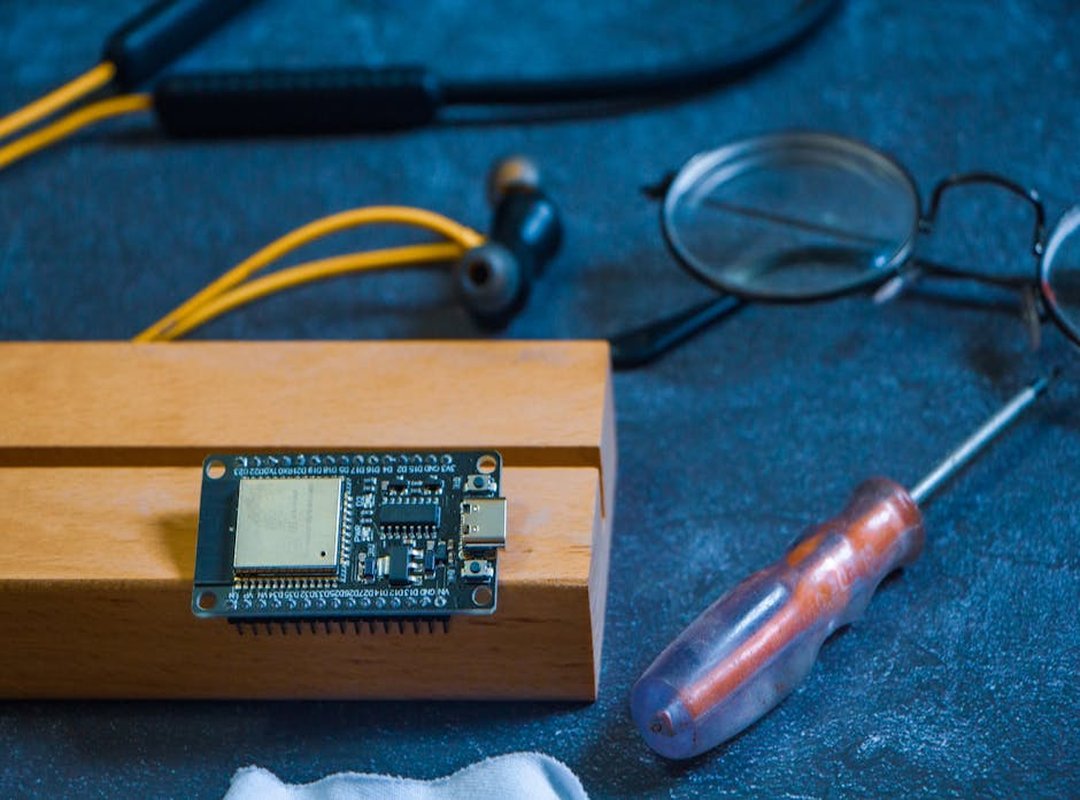
When software tweaks hit a wall, it’s time to grab a wrench and dive into hardware. Seriously, the right upgrades can transform your computer from sluggish to sprightly. Two upgrades stand out: swapping in a Solid State Drive (SSD) and adding more RAM.
First up, the SSD. Think of your old Hard Disk Drive (HDD) as a clunky record player. You know, the kind that spins and clicks?
An SSD, on the other hand, is like a sleek flash drive. It’s faster, quieter, and doesn’t waste time spinning. This upgrade can drastically reduce boot times and make applications load in a snap.
It’s the single biggest performance boost for older machines. Trust me, once you switch, you won’t look back.
Now, let’s talk RAM. Picture your computer’s RAM as its workspace or desk. More RAM means a bigger desk, which allows you to spread out more papers (or browser tabs and applications) without things getting cramped.
It’s the secret sauce for smooth multitasking. Wondering how much you need? For basic users, 8GB is fine.
But if you’re like me and juggle multiple tasks, aim for 16GB.
Checking your current RAM is simple. Right-click on the ‘This PC’ icon, select ‘Properties,’ and there it is. Want to upgrade?
Make sure to match the RAM type with your motherboard.
In the world of PC optimization techniques, these upgrades are game-changers. So, ready to roll up your sleeves? Your computer will thank you.
Performance Myths & Money Pits to Avoid
Let’s talk about what not to do when it comes to PC optimization techniques. You might think registry cleaners are your computer’s best friend. They’re not.
And those RAM boosters? Yeah, they’re a joke. Your operating system already knows how to handle memory just fine.
Modern Windows has a strong registry that doesn’t need meddling. These so-called cleaners often cause more harm than good.
Most of these programs are just bloatware (or worse, scareware). Save yourself the headache and let your PC do its thing. Keep it simple.
Trust me, your machine will thank you.
Speed Up Your PC Now
A slow computer is a headache, right? But you’ve got the tools now. With the PC optimization techniques we’ve covered, you can boost speed easily.
Don’t just sit there. Act. Pick one tip from the ’10-Minute Tune-Up’ section and try it now.
Feel the difference instantly.